I spent a good deal of time this weekend importing hours and hours family videos off our Mini DV cassettes. Lots of fun, and LOTS of video! Based on the size of these files, I was quite close to running out of room on my Windows Media Center. So, I decided to encode the files as WMVs. Huge size reduction with very little quality loss.
I decided to use Microsoft Expression Encoder 3 – a great tool. The best part is that there’s an SDK and set of assemblies that you can use in your own applications.
Note: if you are using a 64-bit machine, be sure to set the platform target of your application to x86, or else you will get compilation errors from the Encoder assemblies.
Below you’ll find the application I wrote. Let me explain my goals:
- Multi-thread the application to encode more than one video at a time.
- Leverage the multitude of cores in my machine.
- Limit the number of threads (I chose the core count as a baseline).
- Use source video and audio source to reduce quality lose.
In order to do this, I had to do two things:
- Find a way to pass in the file name into thread.
- Keep track of the number of threads and limit them to the number of cores in the machine.
I spent a bit of time looking for a good approach. In the end, I chose to use the delegate ParameterizedThreadStart, which takes a parameter of type object. This way, I can create a thread using an instance of this delegate instead of just ThreadStart, and the overload to Thread.Start allows me to specify a value that is passed to this new thread. (Be careful, though, as it only accepts a single parameter (although it can be a collection) and isn’t type-safe.) Additionally, with this approach I was able to leverage a counter, and sleep whenever the counter is going to exceed the number of cores in my machine.
For this to function, I imported the following assemblies (yes, you need Expression Encoder 3):
- Microsoft.Expression.Encoder
- Microsoft.Expression.Encoder.Types
- Microsoft.Expression.Encoder.Utilities
- WindowsBase
Here’s all the code:
// This method is used to look-up the core the thread is using
[DllImport("kernel32.dll", CharSet = CharSet.Auto)]
public static extern int GetCurrentProcessorNumber();

static string inputFolder = @"C:tempVideos";
static string outputFolder = @"C:tempOutputVideo";
static int count;
static int maxNum;

static void Main(string[] args)
{
    // Start the counter at zero
    count = 0;
    // Grab the processor count
    maxNum = Environment.ProcessorCount;

    // Iterate through the AVI files
    foreach (var fileName in System.IO.Directory.GetFiles(inputFolder, "*.avi"))
    {
        // Sleep/wait for a core to free up
        while (count > (maxNum - 1))
        {
            Thread.Sleep(500);
        }
        // Increment the counter
        count++;
        // Create the thread with the delegate
        Thread t = new Thread(new ParameterizedThreadStart(EncodeFile));
        // Start the thread, passing in the file name
        t.Start(fileName);
    }
}

public static void EncodeFile(object ofileName)
{
    string fileName = (string)ofileName;
    MediaItem mediaItem = new MediaItem(fileName);
    mediaItem.OutputFormat = new WindowsMediaOutputFormat();

    // Use source video profile if available
    if (mediaItem.SourceVideoProfile != null)
    {
        mediaItem.OutputFormat.VideoProfile = mediaItem.SourceVideoProfile;
    }
    else
    {
        mediaItem.OutputFormat.VideoProfile = new AdvancedVC1VideoProfile()
        {
            Size = mediaItem.MainMediaFile.VideoStreams[0].VideoSize,
            Bitrate = new ConstantBitrate(1000)
        };
    }

    // Use source audio profile if available
    if (mediaItem.SourceAudioProfile != null)
    {
        mediaItem.OutputFormat.AudioProfile = mediaItem.SourceAudioProfile;
    }
    else
    {
        mediaItem.OutputFormat.AudioProfile = new WmaAudioProfile();
    }

    // Create a job and the media item for the video we wish to encode.
    Job job = new Job();
    job.MediaItems.Add(mediaItem);
    // Set up the progress callback function
    job.EncodeProgress
    += new EventHandler(OnProgress);
    // Set up the completed callback function
    job.EncodeCompleted
    += new EventHandler(job_EncodeCompleted);
    // Set the output directory and encode
    job.OutputDirectory = outputFolder;
    // Do not create a job subfolder
    job.CreateSubfolder = false;
    // Encode
    job.Encode();
}

static void job_EncodeCompleted(object sender, EncodeCompletedEventArgs e)
{
    // Decrement the counter
    count--;
}

static void OnProgress(object sender, EncodeProgressEventArgs e)
{
    // Write out information
    Console.WriteLine(
    count.ToString() + " : " +
    GetCurrentProcessorNumber().ToString() + " : " +
    System.Threading.Thread.CurrentThread.ManagedThreadId.ToString() + " : " +
    e.Progress + " : " +
    e.CurrentItem.ActualOutputFileName);
}
Good stuff.
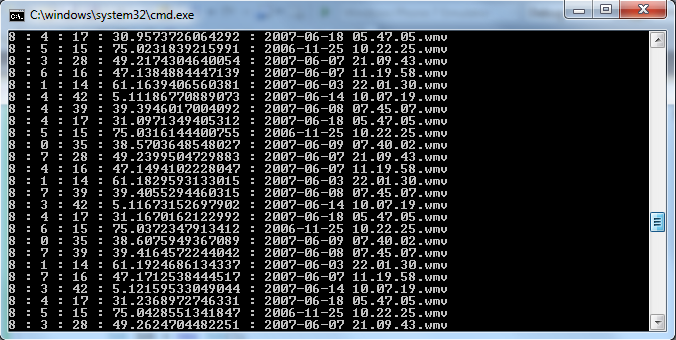
I’m running it from the console, so you will have to make some modifications if you want it to run in a more sophisticated application. Works for me, though – I just start it up at the end of the day. Here you can see the information that’s written out to the console (note the variety of cores leveraged):
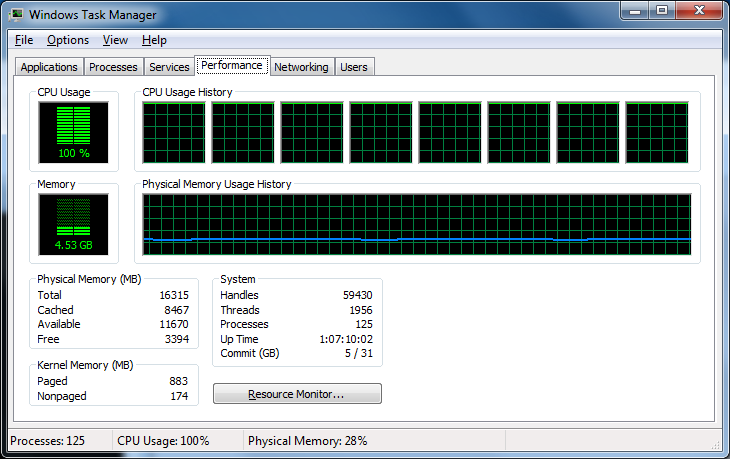
It’s fun to see my machine working this hard. Every core is pegged.
Hope someone finds this useful. Anyone see a better way to approach this?